Moving from Covidence to Study Screener
Export each Covidence list as RIS, import it into Study Screener, and see what transfers. Votes do not. Full text and extraction stay in Covidence.
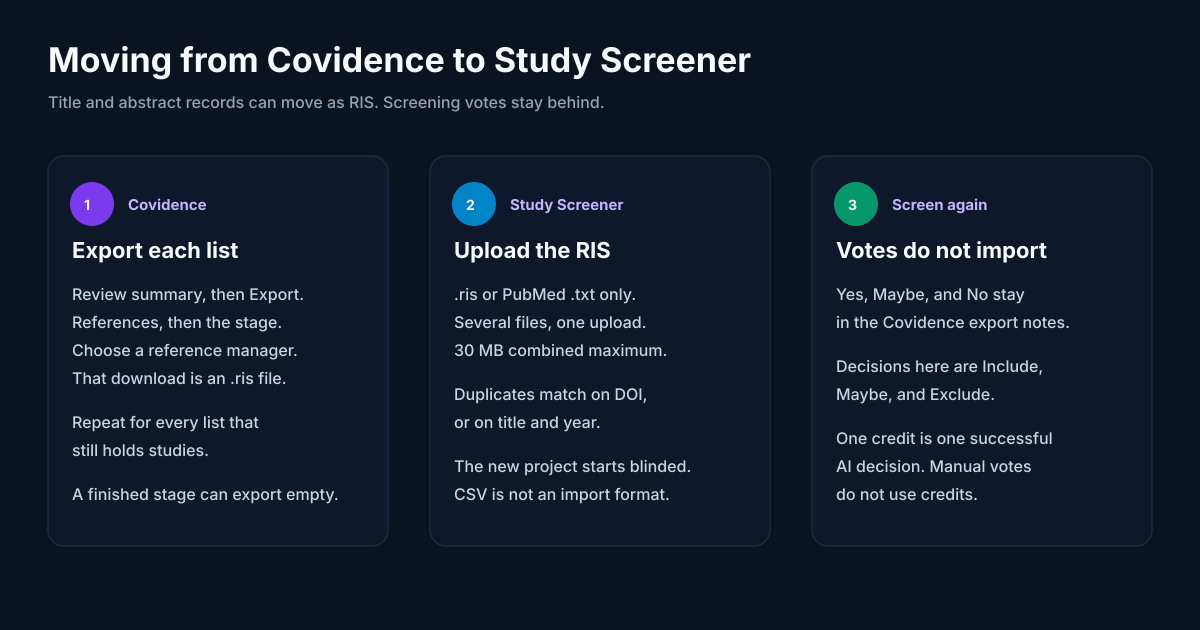
Purpose. This is a migration guide for people who already have a Covidence review and want title and abstract screening in Study Screener. Covidence steps below are taken from Covidence’s public help, re-read on 31 October 2026. Study Screener steps are taken from this product’s upload, billing, and export code. It is a fair map, including the jobs Covidence still does better.
Leave Covidence in place until a pilot matches. Nothing on this page deletes a Covidence review, and Study Screener does not connect to a Covidence account.
What this move is, and what it is not
Covidence is a hosted review: import, title and abstract screening, full text, extraction, quality assessment, and a PRISMA flowchart that updates inside the review. Study Screener is a title and abstract screening product. It imports references, supports blinded manual decisions, and can run a separate AI screening job.
If the review still needs full-text screening, data extraction, or quality assessment inside one review, Covidence remains the better fit. A wider tour of screening tools is in Best screening tools for a systematic review.
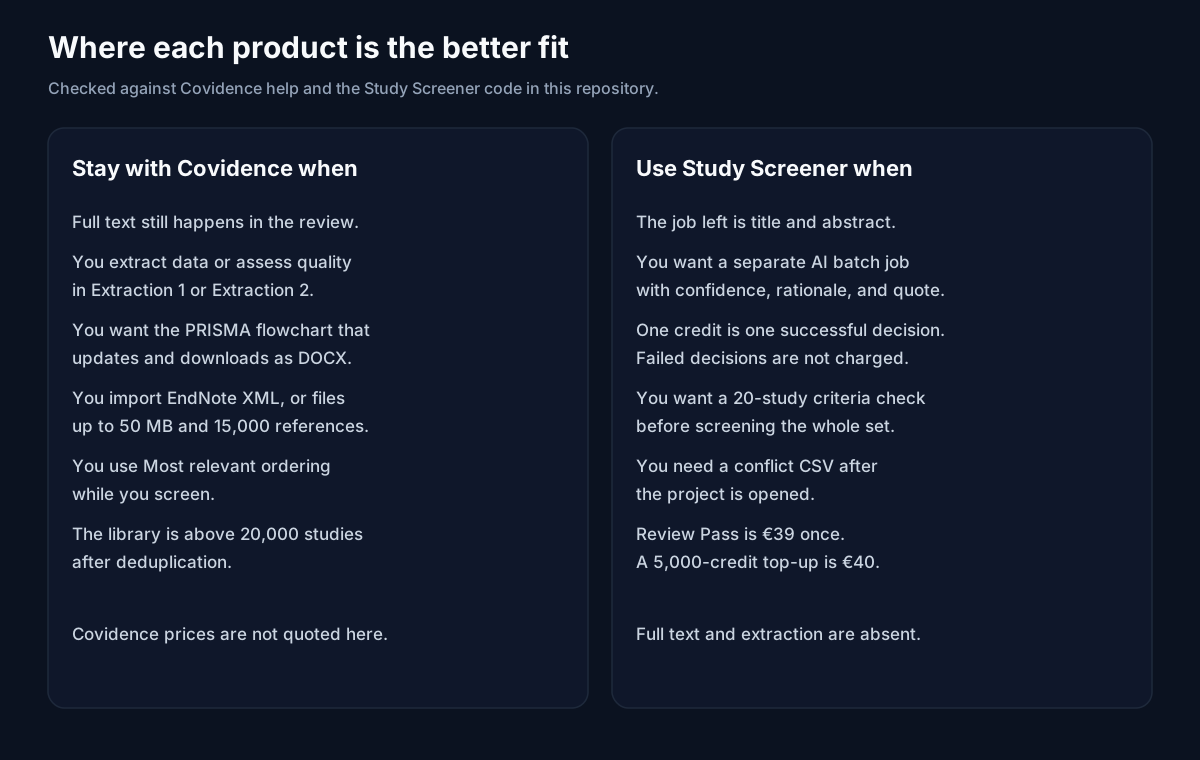
Figure: Stay in Covidence for the later review stages. Use Study Screener when the remaining job is title and abstract screening.
Export references from Covidence
Covidence’s export builds a file from the list where studies sit now. After title and abstract screening, studies are in Irrelevant and Full text review. After full text screening, they are in Irrelevant, Excluded, and Included. Exporting a finished stage can produce an empty file, because those studies have moved. Covidence documents that on Why is the CSV file empty? and recommends exporting a stage before you screen it if you need every record that passed through it (export study lists).
To download a list that Study Screener can import, follow Covidence’s own export steps (export study lists, help updated 5 March 2026):
- From the review summary, open the Export tool.
- Choose Export to file, then References, then Stage, and select the list.
- Select a reference manager: EndNote, Cochrane Register of Studies, Zotero, Mendeley, or RefWorks. Covidence says each of those downloads an
.risfile. Leave CSV for a side file, described below. - Click Prepare file.
- When the file is ready, click Download and save it.
- Repeat for every list that still contains studies you need.
Screening notes are included in the RIS export. On the excluded list, the exclusion reason is exported as a note (export study lists).
A CSV export puts tags in one column and notes in another. Keep that CSV. It is a useful lookup. It is the wrong file to upload: Study Screener accepts .ris and PubMed/MEDLINE .txt only. Covidence also says a CSV cannot be imported back into Covidence (copy references to another review).
If the download is named .txt and the text starts with RIS tags (TY - and ER -), Study Screener can read that .txt. A spreadsheet CSV will be rejected.
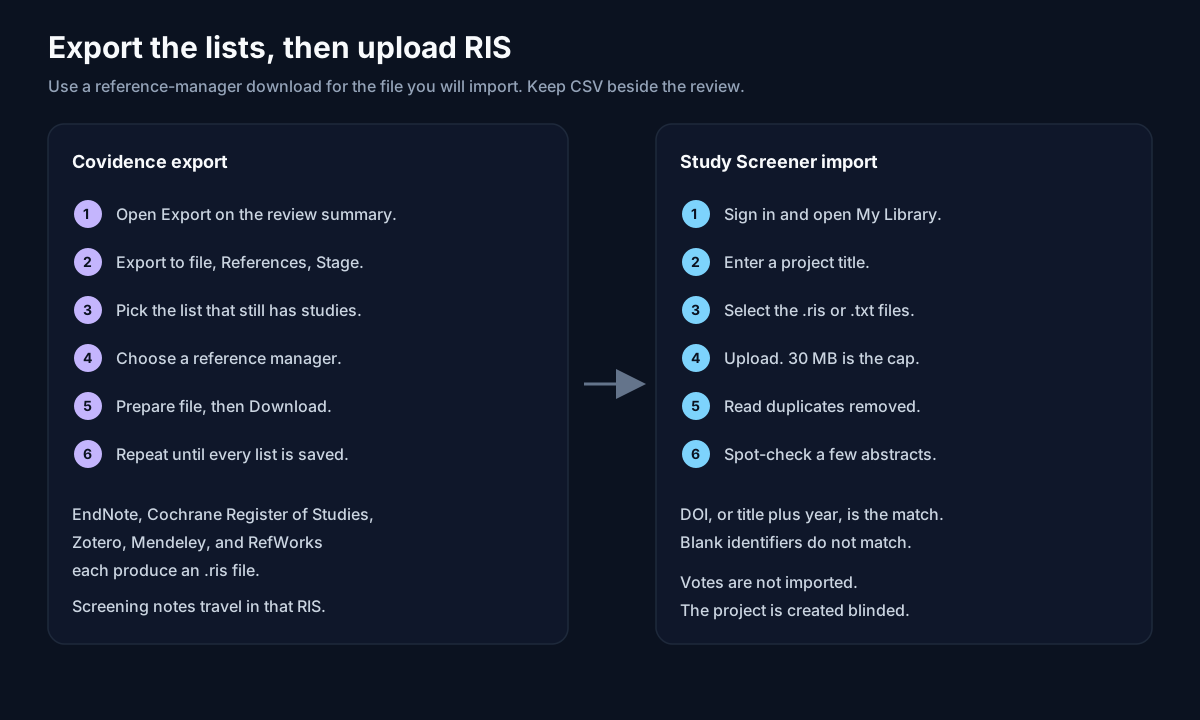
Figure: Export every current Covidence list as RIS, then upload those files together.
What the export does not contain
Covidence keeps voting history on the study, behind View history, once the stage is complete. That history, and the record of conflicts, cannot be exported. You can export the references sitting on the Resolve Conflicts page before the final vote; that file contains the references, not the votes or the voters (voting history and conflicts).
After title and abstract or full text screening is complete, Covidence can export an inter-rater reliability CSV, including Cohen’s kappa. In that title and abstract calculation, Maybe votes are counted as Yes. Resolving conflicts does not change the coefficient. Only the final set of votes at that stage is included (inter-rater reliability, help updated 27 October 2025).
Copy those two facts into your methods file before you leave:
- The duplicate count on Covidence’s PRISMA chart. Duplicates are quarantined on import and shown there. They are not the studies sitting in the screening lists (import studies, export PRISMA).
- The inter-rater CSV, if you have already finished a stage.
Study Screener reports duplicates only inside the files you upload. It will not reconstruct duplicates Covidence already removed.
Import the RIS into Study Screener
Study Screener creates a project from the upload. There is no Covidence login and no “import decisions” switch.
From My Library
- Sign in.
- Open My Library.
- Enter a project title.
- Select one or more
.risor.txtfiles. Several Covidence lists can go in the same upload. - Upload. The combined size must be 30 MB or less (
MAX_COMBINED_UPLOAD_BYTESin the upload limit shared by the app and the API).
From the manual screening new-project control
Drop the same .ris or .txt files. That control creates a manual project and opens it. If you do not type a title, the project title is the first file name without its extension.
From AI screening
The AI upload accepts the same two extensions. Creating an AI project requires a credit balance above zero. Signup includes 1,000 credits, so a new account can start. You still need a research question, at least one inclusion criterion, and at least one exclusion criterion before a run.
After a successful upload the response includes how many records were identified, how many duplicates were removed, and how many studies were stored. Duplicates match on a normalized DOI, or on a normalized title plus year when both are present. A blank DOI does not match another blank DOI. A title without a year does not match. When two records match, the richer record is kept and missing fields are filled from the other copy.
The new project is created with blinding on.
Open a sample of records before anyone screens. Confirm the abstract is the abstract. The parser uses the abstract field when it is present. If the abstract is missing or only a few characters, it can fall back to a notes field. Covidence puts screening notes, and exclusion reasons on the excluded list, into that note. A short spot-check catches a note that landed in the abstract box.
Prior Yes, Maybe, and No votes are not written as Include, Maybe, or Exclude decisions. The same limit is described for other tools in How to import from Zotero, EndNote, or a RIS file. Keep the Covidence CSV open beside the project if reviewers need the old notes while they screen again.
Database downloads from PubMed, Embase, and Web of Science, if you would rather start from the databases than from Covidence, are in the complete guide to RIS file screening.
Map the decisions, then screen again
| Covidence vote | Study Screener decision | What the import does |
|---|---|---|
| Yes | Include | Stores the reference. Does not record Include. |
| Maybe | Maybe | Stores the reference. Does not record Maybe. |
| No | Exclude | Stores the reference. The exclusion reason may be in the RIS note. It is not an Exclude decision. |
Manual screening uses Include, Maybe, and Exclude, with notes. On the dashboard, I, M, and E apply those three decisions. Invite reviewers from the project. Invitations expire after 7 days and can be resent. While the project is blinded, each reviewer sees their own decisions. Conflict comparison, and the conflict CSV, are available after the project is opened. The conflict export returns an error while the project is still blinded. The team flow is written up in Dual screening and team collaboration.
Cohen’s kappa in Study Screener is an unweighted coefficient on three categories: include, maybe, and exclude. It is shown for reviewer pairs in My Library. Covidence’s exported kappa counts a title and abstract Maybe as Yes. The two numbers answer different questions. Keep Covidence’s CSV as the record of the Covidence stage, and calculate Study Screener’s kappa only from decisions made here. The formula and the usual cut-points are in Dual screening, conflicts, and Cohen’s kappa.
AI screening, credits, and RAISE
AI screening is optional and separate from the manual queue. It labels each title and abstract against the criteria you typed. Results store a decision, a confidence score, a rationale, and a quote. It is aligned with RAISE guidance: the job supports human judgment, and the responsible use statement is the public description of that commitment. Read AI screening and manual screening before you treat an AI exclude as final.
One credit is one successful AI decision on one abstract. A failed attempt is not charged. A manual Include, Maybe, or Exclude does not use a credit.
When more than 20 studies are waiting, the screen offers Test Criteria on 20 Studies and, as a smaller control, Skip Check and Screen All. The 20-study check costs at most 20 credits, because only successful decisions are billed.
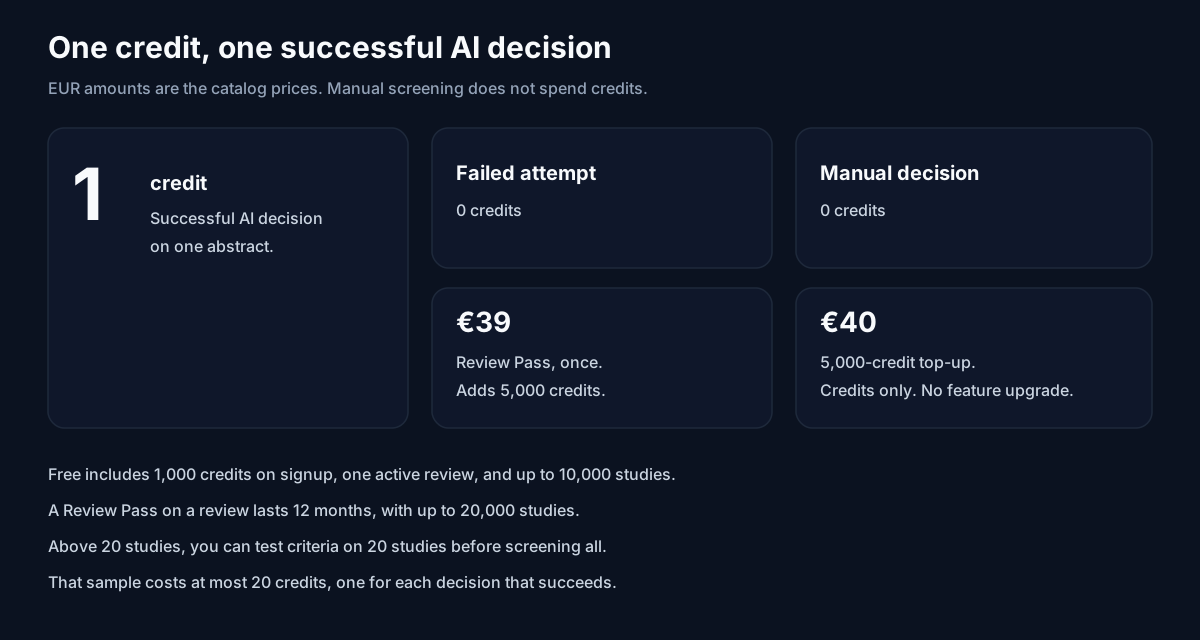
Figure: Credits pay for successful AI decisions. The euro amounts match the pricing page.
Current Study Screener prices
These euro amounts are shown on the pricing page. Checkout can present another currency. Covidence prices are not quoted here; use Covidence’s own pricing page.
| Offer | Price | What you get |
|---|---|---|
| Free | €0 | 1,000 credits on signup. One active review, up to 10,000 studies, up to five invited reviewers. The owner has a seat as well. Manual screening is included. Five exports per review per 24 hours. |
| Review Pass | €39 once | 5,000 credits, in addition to the signup credits. 12 months on one review, up to 20,000 studies, up to ten invited reviewers. The pricing page offers FIRST20 for 20% off the first Review Pass purchase. |
| 5,000-credit top-up | €40 | 5,000 credits on the account balance. A top-up does not add a review, raise the study cap, or raise the export cap. |
| Other top-ups and Team | €20, €120, and €1,990 | 2,000 credits for €20. 20,000 credits for €120. Team is €1,990 per year, with 250,000 pooled credits, up to 25 active reviews, 20,000 studies per review, and 50 invited reviewers per review. |
Top-ups do not expire. Unused Team credits expire at the end of the Team year. Pending invitations count toward the reviewer cap.
Signed audit export (a JSONL file of AI decisions) and the AI job’s PRISMA data require a Review Pass on that review or an active Team plan. Without that, the API responds that PRISMA and audit export require one of those two. Manual RIS and CSV exports are available on Free, inside the daily cap: five per review per 24 hours on Free, and 25 when a Review Pass is attached to that review or the account is on an active Team plan.
Feature map
| Covidence, from its help | Study Screener, from this repository | |
|---|---|---|
| Import formats | EndNote XML, PubMed text, RIS (import studies) | .ris and PubMed/MEDLINE .txt |
| How many files | One file at a time. Imports can be repeated. | Several files in one upload |
| Size | Up to 50 MB. Above 15,000 references, split the file. No limit on total references. | 30 MB combined per upload. Free stores up to 10,000 studies in a review. A Review Pass or Team review stores up to 20,000. |
| Deduplication | On import. The PRISMA chart adds system-detected and manually marked duplicates. | DOI, or normalized title and year, across the files in that upload |
| Title and abstract votes | Yes, Maybe, No. A new review defaults to dual screening: two different people, blinded until each has voted (title and abstract screening, help updated 16 December 2025). | Include, Maybe, Exclude. New projects are created blinded. Dual review is available when you invite reviewers. A single owner can screen. |
| Order while screening | Default Most relevant uses machine-learning predictions. Author, title, or most recent are also available. | No equivalent “most relevant” sort on the manual queue. AI screening is a separate job. |
| Vote history | Visible in the product. Not exportable. | Screening-log CSV. Conflict CSV after the project is opened. Covidence votes are not imported. |
| Agreement | IRR CSV with Cohen’s kappa. Title and abstract Maybe counts as Yes. | Unweighted Cohen’s kappa on include, maybe, and exclude, in My Library |
| Full text | In the same review. PDFs do not travel in a reference export (copy references). | Not in this product |
| Extraction | Extraction 1 and Extraction 2. Data does not move between them. Extraction 1 can offer field suggestions the extractor accepts or rejects (which extraction to use, help updated 16 August 2026). | Not in this product. After screening, the site points extraction to Evidence Table Builder. |
| Quality assessment | Exported from Extraction 1 to CSV, RevMan 5, or RevMan Web (quality assessment export). | Not in this product |
| PRISMA | Flowchart updates in the review, including full-text exclusion reasons. Download is DOCX. “Studies not retrieved” is set to zero for you to edit (export PRISMA, help updated 17 November 2025). | A PRISMA 2020 diagram builder. The AI job’s PRISMA data is a paid export. |
| AI at title and abstract | Most relevant ordering during screening. Extraction 1 has separate field suggestions. | Batch job with decision, confidence, rationale, and quote. One credit per successful decision. |
Where Study Screener is the better fit
Choose Study Screener when the remaining work is title and abstract screening and you want the following, all of which are in the product today:
- A separate AI job that returns a decision, a confidence score, a rationale, and a quote, with a 20-study criteria check before a large run.
- A published credit rule: one successful AI decision costs one credit, and a failed attempt costs none.
- A catalog price you can read before you buy: Free, a Review Pass at €39, and a 5,000-credit top-up at €40.
- A conflict CSV after the project is opened. Covidence’s help says voting history and conflict records cannot be exported.
- Several database files in one upload, deduplicated together.
Where Covidence is stronger
Stay in Covidence, or finish these stages there before you export, when you need:
- Full-text screening, data extraction, and quality assessment in the same review. Study Screener does not do those stages.
- A PRISMA flowchart that updates from import, screening, and full-text exclusion reasons, and downloads as DOCX.
- EndNote XML import, files up to 50 MB, batches of 15,000 references, and no limit on total references.
- Most relevant ordering while reviewers are in the title and abstract queue.
- A library above 20,000 studies after deduplication. That is the Study Screener cap on a Review Pass or Team review. Free stops at 10,000.
- An in-review inter-rater export that already matches the Covidence voting rules, including Maybe counted as Yes.
If the team is mid-extraction, moving the reference list does not move the extraction forms, the consensus, or the PDFs. Covidence says those have to be recreated (copy references).
A short note on Rayyan
Rayyan is a different product from Covidence. This guide does not restate Rayyan’s feature list. If you are choosing a title and abstract tool, rather than leaving a Covidence review that still has full text and extraction ahead, use Study Screener vs Rayyan. That comparison is about screening behavior. It is a poor reason to leave Covidence while extraction and quality assessment are still in progress.
The path after screening
Study Screener covers title and abstract screening. The later stages run in sister tools from the same team:
- Screen in Study Screener. Export the included records as RIS.
- Extract in Evidence Table Builder, which builds the evidence table from the included studies.
- Finish the review with SystematicReviewTools, a set of tools for the other stages of a systematic review.
If you would rather have AI support across the whole review, look at AI Systematic Review.
A pilot before you switch
- In Covidence, download the inter-rater CSV if the stage is already complete, and write down the PRISMA duplicate count.
- Export one list as RIS, using a reference-manager format. Export the matching CSV and keep it outside Study Screener.
- Upload that RIS into a new Study Screener project. These screens start a new project, and every file in the upload counts toward one 30 MB cap. A larger Covidence export does not fit in that project through these screens. Export a smaller list, or a RIS of citations and abstracts only, and check the size before you upload.
- Check ten records. Titles and abstracts should match Covidence. Notes should not have replaced empty abstracts.
- Screen those ten again, manually. Compare them with the Covidence CSV. Expect to do the work again.
- If you want AI, run Test Criteria on 20 Studies and read the excludes before you screen the rest.
- Keep the Covidence review until the exports, the counts, and the screening sample are acceptable.
For a library larger than these caps, contact via the contact page.
Sources
Covidence help, re-read 31 October 2026:
- How to export study lists to your reference manager (updated 5 March 2026).
- Why is the CSV file empty when I export my references?.
- Can I export the voting history and/or records of conflicts?.
- Can I copy my references to another review?.
- How to import references.
- How to screen by title and abstract (updated 16 December 2025).
- How to export and interpret PRISMA (updated 17 November 2025).
- How to export inter-rater reliability data (updated 27 October 2025).
- How to decide when to use Extraction 1 vs Extraction 2 (updated 16 August 2026).
- How to export quality assessments to Excel using Extraction 1 (updated 5 March 2026).
Study Screener behavior is from this repository: upload extensions and the 30 MB cap, deduplication by DOI or title and year, blinded project creation, Include / Maybe / Exclude, the 20-study criteria check, credit rules on the pricing page, and the plan limits in the pricing catalog. Method context for dual screening and flow diagrams: PRISMA 2020 and Cochrane Handbook, Chapter 4.